Using AI with the systems you already run
Last checked 4 October 2026
How Microsoft 365 Copilot and the AI in your CRM and accounts software fit a construction business, how to tell if your Microsoft 365 is ready, and what to check before you connect anything.
Most construction firms already pay for software that has AI built in or on offer: Microsoft 365, a CRM, accounts software and often a system for jobs or projects. Before you buy anything new, it's worth knowing what those can do and what has to be in order first, because the AI works from whatever your systems already hold.
Using Microsoft 365 Copilot in a construction firm
Microsoft 365 Copilot, which Microsoft now calls Microsoft Copilot, works inside Word, Outlook, Teams and Excel. In a construction firm that means summarising long email threads on a job, drafting letters and reports, writing up Teams meetings with their actions, and finding past documents, all from the files and emails each person can already open.
- Summarising a long email chain with a client or subcontractor
- Drafting letters, reports and minutes in Word
- Writing up a Teams progress meeting, with the actions
- Finding a document you know exists but can't place
There are two versions, and they see very different amounts of your business:
| Copilot Chat | Microsoft Copilot (paid add-on) | |
|---|---|---|
| Comes with | Eligible Microsoft 365 business licences | A Copilot licence on top of an eligible plan |
| Works from | Mostly the web, plus any file you give it | Your emails, files, meetings, calendar and chats as well |
| Good for | Drafting and summarising what you paste in or upload | Finding and using what's already in your Microsoft 365 |
Is your Microsoft 365 ready for Copilot?
It's ready when your documents live in Microsoft 365 and each person can open only what they should. Copilot shows people anything they already have permission to see, so a salary file shared with everyone becomes easy for everyone to find. Check where files live, tidy who can open what, then check your licences.
Who can open what
Illustrative
| Folder | Who can open it | Before Copilot |
|---|---|---|
| Tenders and bidsBid team | Bid team | Fine |
| Payroll and salariesEveryone in the company | Everyone in the company | Fix first |
| Subcontractor accountsFinance | Finance | Fine |
| HR and disciplinaryDirectors, and a former employee's account | Directors, and a former employee's account | Fix first |
| Site photos, 2019 jobsAnyone with an old link | Anyone with an old link | Archive |
| Project drawingsEach project team | Each project team | Fine |
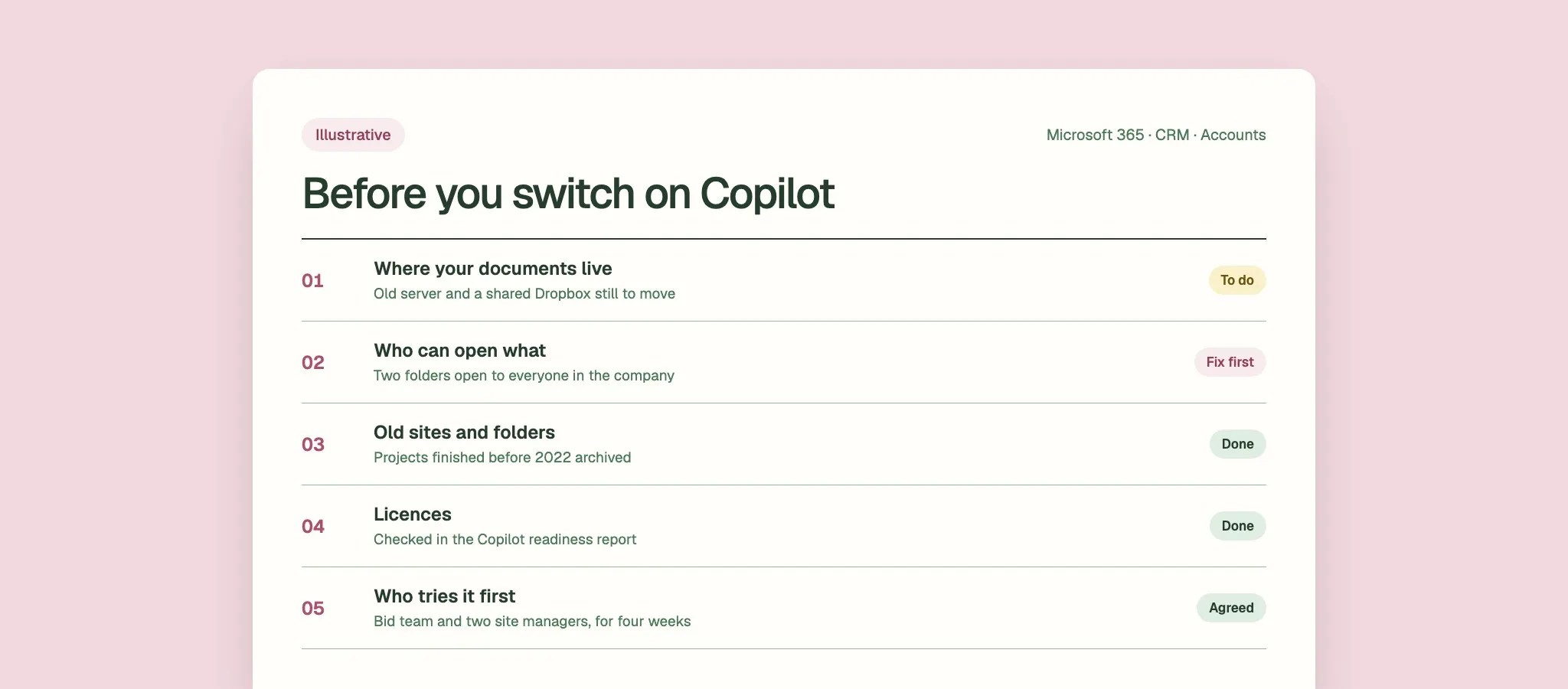
Five steps get you there, and Microsoft provides the tools for two of them:
- 1
Find out where your documents live.
Copilot works from Microsoft 365: SharePoint, OneDrive, Teams and Outlook. Files on an old server, in Dropbox or in another system need moving, or a connector set up by whoever runs your IT.
- 2
Check who can open what.
Look for folders shared with everyone or through old links, especially payroll, HR and anything commercial.
- 3
Archive what's finished.
Old sites and folders clutter the answers. Microsoft suggests archiving inactive sites so Copilot works from current content.
- 4
Use Microsoft's own checks.
The Copilot readiness report in the Microsoft 365 admin centre shows who is eligible for a licence. SharePoint Advanced Management, included with Copilot licences, finds overshared content.
- 5
Start with a few people.
Pick one team and one job, and compare the hours it takes before and after over four weeks.
AI and your CRM
Most CRMs now include AI that summarises a customer or opportunity record, drafts emails and helps you prepare for meetings. It works from what's logged in the CRM, so it helps most when enquiries, calls and emails go in. Whether your CRM is general or built for construction, check what its AI can see and change.
| CRM | What its AI does, as the vendor describes it | Who sees what |
|---|---|---|
| Microsoft Dynamics 365 Sales | Summarises leads, opportunities and accounts, highlights recent changes, helps you prepare for meetings and drafts emails | Only records and files the signed-in person can already open |
| HubSpot | Breeze Assistant summarises records, writes content such as emails and helps you prepare for meetings | Admins choose which data AI can use; each person's permissions decide what it can do |
In a construction business the useful part is usually keeping the CRM up to date: turning enquiry emails and call notes into updates for someone to approve. It's one of the ten office jobs in how AI is used in construction.
AI and your accounts software
Accounts software is adding AI that captures bills and receipts, reconciles bank transactions, chases late invoices and answers questions about your figures in plain language. For a contractor, that means less keying in and a quicker view of who owes what. Check what it can change on its own, and keep approving every payment yourself.
| Software | What its AI does, as the vendor describes it | Control |
|---|---|---|
| Xero, with JAX | Captures bills and receipts, sends invoices, reconciles transactions, and answers plain-language questions about cash flow, invoices and bills from your Xero data | Every automated action goes in an audit trail you can review. Xero's connector for Claude is read-only |
| Sage, with Sage Copilot | In Sage Accounting, follows up late invoices in your tone and at your timing | Works within the permissions you set, with audit trails and approvals. Sage says features vary by product and region |
Cash flow is where this pays off for most contractors. The construction cash flow guide has a free 13-week look-ahead you can fill in from your accounts.
What to check before connecting anything
Before you connect AI to any system, know what it can see, what it can change, where your data goes and who checks its work. Start read-only where you can, keep personal data out until you've assessed it, and trial it with a few people on one job before anyone else gets it.
- What it can see
- Does it follow each person's permissions, or can it see everything?
- What it can change
- Can it send, post or pay on its own, or only suggest? Is there a read-only option?
- Where your data goes
- Is it stored, and is it used to train the vendor's models? Microsoft says Copilot doesn't train its models on your Microsoft 365 data. Ask other vendors to put their answer in writing.
- Personal data
- The ICO's guidance says most uses of AI with personal data need a data protection impact assessment. Do it before you switch on.
- Who checks
- Who approves what AI drafts, and where is that recorded?
- Your rules
- Does your team know what can and can't go into AI?AI policy template →
The ICO is reviewing its AI guidance after the Data (Use and Access) Act, so check the current version before you rely on it.
Not sure which system to start with? The check ranks your office jobs first.
Sources
- Microsoft Learn, Data, privacy and security for Microsoft Copilot
- Microsoft Learn, Microsoft Copilot overview
- Microsoft Learn, Microsoft Copilot requirements
- Microsoft Learn, Microsoft Copilot readiness report
- Microsoft Learn, Secure and govern Microsoft Copilot: foundational deployment guidance
- Microsoft Learn, Get ready for Microsoft Copilot with SharePoint Advanced Management
- Microsoft Learn, Copilot connectors overview
- Microsoft Learn, Copilot in Dynamics 365 Sales overview
- HubSpot Knowledge Base, Use Breeze Assistant
- HubSpot Knowledge Base, Summarize a record
- Xero, JAX: AI accounting software
- Sage, Sage Copilot
- ICO, What are the accountability and governance implications of AI?
Find out where AI fits in the systems you already pay for.
The check takes about two minutes and gives you a one-page plan to keep. Free. Any work after it is agreed separately.